Your Settings Menu Is Killing Your Rank (And You Don't Even Know It)
You've watched the VODs. You've practiced your aim. You've even read the patch notes like a responsible adult. And yet — same rank, same losses, same frustration. Before you spiral into another Reddit thread about matchmaking being rigged, let's talk about something most players completely skip over: their system and in-game configurations.
Pro players and their coaches obsess over settings that the average ranked grinder has never touched. Not because pros are gear nerds, but because at the highest level, every millisecond and every pixel of clarity matters. The good news? You don't have to be a pro to benefit from the same setup. You just have to know where to look.
The Refresh Rate Trap Nobody Talks About
You bought a 144Hz monitor. Maybe even a 240Hz one. You told your friends about it. You feel fast. But here's the thing — if your system isn't actually pushing frames to match that refresh rate, you've bought an expensive picture frame.
The first thing to verify is whether G-Sync or FreeSync is properly enabled in your GPU control panel, and that it's also toggled on in your monitor's OSD (on-screen display) settings. A lot of players enable one but not the other, which means variable refresh rate technology is sitting there doing absolutely nothing. Once both are active, your monitor syncs its refresh rate to your GPU's output, eliminating screen tearing and reducing the visual stutter that throws off your tracking.
Next, cap your frame rate. This sounds counterintuitive, but running uncapped frames can actually introduce more input lag in some scenarios due to the GPU rendering frames faster than the display can process them. A general rule: cap your frames at roughly 3-4 FPS below your monitor's max refresh rate when using G-Sync, or at your monitor's exact refresh rate when using FreeSync. Tools like RTSS (RivaTuner Statistics Server) give you more precise control than most in-game limiters.
Input Lag: The Invisible Wall Between You and Your Rank
Input lag is the delay between when you move your mouse and when that movement shows up on screen. Even 20-30 milliseconds of extra lag can make the difference between landing a headshot and missing it entirely. And a surprising number of players are sitting on completely avoidable input lag because of a handful of settings.
Start with your TV or monitor's display mode. If you're gaming on a TV — no judgment — make sure Game Mode is enabled. Standard or Movie modes apply post-processing that can add anywhere from 30 to 150ms of lag. That's not a typo. You could be playing more than a tenth of a second behind reality.
On the PC side, head into your NVIDIA or AMD control panel and look for the "Low Latency Mode" option. Setting this to "Ultra" in NVIDIA's panel reduces the pre-rendered frame queue, which shortens the pipeline between your inputs and what you see. Pair this with enabling "Maximum Performance" under power management settings so your GPU isn't throttling itself at the wrong moment.
Inside your games, turn off V-Sync unless you're using a variable refresh rate solution. Traditional V-Sync caps frames and introduces significant input delay. It's a relic that most competitive players abandoned years ago.
Sensitivity Curves: Why Your Mouse Feels Wrong Even When It's "Correct"
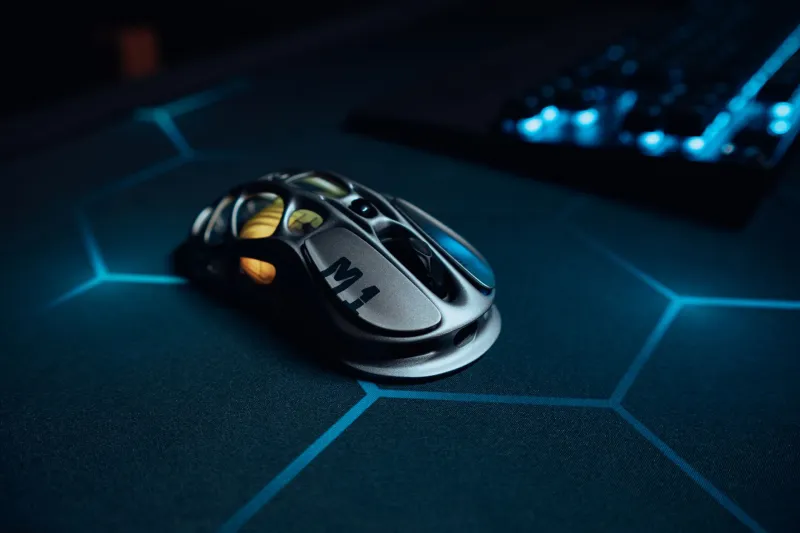
This is where things get more nuanced. A lot of players find their "correct" sensitivity through trial and error, lock it in, and never think about it again. But sensitivity isn't just one number — it's a relationship between your mouse's DPI, your in-game sensitivity multiplier, your polling rate, and any acceleration curves that might be quietly applied in the background.
First, kill Windows mouse acceleration. Go to Mouse Settings > Additional Mouse Options > Pointer Options and uncheck "Enhance pointer precision." This feature applies a variable acceleration curve to your mouse movement, meaning fast swipes move more than slow ones relative to the distance traveled. That inconsistency is poison for muscle memory.
In-game, look for sensitivity or input curve settings that go beyond a single slider. Games like Valorant, Apex Legends, and CS2 all have additional options buried in their menus. Valorant, for example, lets you set a "First Shot Ray Cast" option that affects how bullet origins are calculated at the moment of firing. CS2 has raw input settings that bypass Windows entirely. These aren't cosmetic options — they directly affect how your physical inputs translate to in-game actions.
For DPI specifically, there's no universally correct number, but most competitive players land between 400 and 1600 DPI with in-game sensitivity adjusted to compensate. Higher DPI with lower in-game sensitivity often gives you a smoother cursor movement, but test both ends of the spectrum before committing.
Crosshair Placement: The Default Is Designed for Casual Play
Default crosshair settings in most games are built for accessibility, not competition. They're large, dynamic, and they expand when you move or shoot — which is useful feedback for new players but visual noise for anyone trying to compete.
Switch to a static crosshair. A small, fixed dot or a tight cross with no dynamic spread gives you a consistent visual reference point regardless of what's happening on screen. It also forces you to develop better crosshair placement habits, because you can no longer rely on a giant reticle to compensate for lazy positioning.
Colors matter too. Bright green and cyan crosshairs tend to stand out against most map environments across popular titles. Avoid white or red — white blends into bright surfaces and HUD elements, while red disappears against certain skins and explosion effects.
Resolution and Aspect Ratio: The Competitive Meta You're Ignoring
This one's controversial, but worth understanding. A significant portion of pro CS2 players still use stretched 4:3 resolutions, which makes character models appear wider and — in theory — easier to hit. Whether the placebo effect is doing most of the heavy lifting is debatable, but the underlying logic is that lower resolutions push more GPU resources toward frame rate rather than image quality.
For most players in most games, native resolution at your monitor's full aspect ratio is the right call. But if you're playing a title where pros consistently use non-native setups, it's worth experimenting. Just make sure you're not sacrificing so much visual clarity that you can't spot enemies in dark corners.
The Bottom Line
Being hardstuck isn't always about mechanics or game sense. Sometimes it's about the invisible friction your setup is creating every single session. Fixing your refresh rate sync, eliminating unnecessary input lag, dialing in your sensitivity pipeline, and cleaning up your crosshair and resolution settings won't turn you into a pro overnight. But they will remove the ceiling your settings have quietly been pressing down on you.
Go through your menus like you mean it. Your rank will thank you.